

How to Use the GETPIVOTDATA Function in Excel

Are you looking for a way to quickly analyze data in Microsoft Excel?
The GETPIVOTDATA function is an incredibly powerful tool that can help you easily extract and manipulate data from pivot tables. This function lets you quickly get the exact information you need without manually searching through your spreadsheet. Plus, it’s easy to use!
Imagine accessing all of the data stored in your pivot table with just one simple formula. You won’t have to spend time searching for the right cell or scrolling through rows of numbers – instead, you’ll be able to instantly get the answers you need.
Read on and learn how to use the GETPIVOTDATA function in Microsoft Excel today!
What Is An Excel Pivot Table?
Before you can use the GETPIVOTDATA function, it’s essential to understand what a pivot table is. A pivot table is a powerful tool that allows you to quickly organize, summarize, and analyze large amounts of data.
A pivot table contains rows and columns of information from your original data set. You can then manipulate the pivot table to display various data summaries, such as sums, averages, and counts.
For example, let’s say you have a spreadsheet containing sales data for your company. You can use a pivot table to quickly determine which product was the best seller in each region or which month had the highest average sales. You could also use the pivot table to calculate total sales by region or find out which products had the largest increase in sales from one period to the next.
What Is The GETPIVOTDATA Function In Excel?
The GETPIVOTDATA function is a powerful tool in Excel that enables you to extract data from a specified pivot table. This function helps you quickly get the exact information you need without manually searching through your spreadsheet or table.
The GETPIVOTDATA Formula
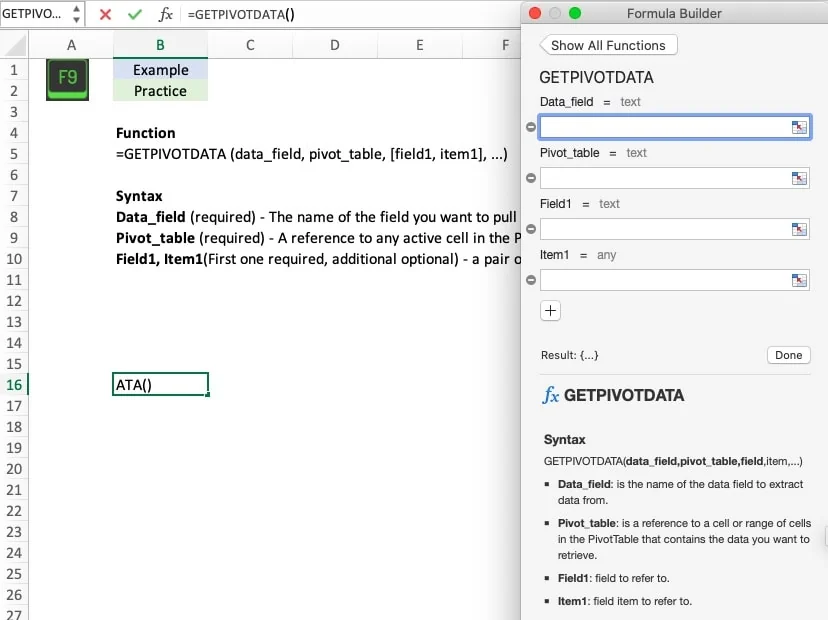
Here is the GETPIVOTDATA function syntax:
=GETPIVOTDATA(data_field, pivot_table, [field1, item1], …)
- Data_field (required) – The name of the field you want to pull from the Pivot Table
- Pivot_table (required) – A cell reference in the Table or the name of the Table that you want to pull pivot data from
- Field1, Item1(First one required, additional optional) – a pair of fields and items that you want to pull
Where Is The Excel GETPIVOTDATA Function located?
Option 1:
You can find the GETPIVOTDATA function in the Formulas tab of Excel under Lookup & Reference.
Option 2:
You can use Formula Builder to walk you through the formula step by step.
Option 3:
You can manually type the formula into any cell.
How To Use The GETPIVOTDATA Function
Excel Workbook
Example – Analyze Store Performance
Let’s walk through an example of using GETPIVOTDATA to analyze the performance of a chain of retail stores spread across the country. We can use pivot tables to quickly manipulate a large data set. Our data set has sales and customer data by month for various stores across four regions.
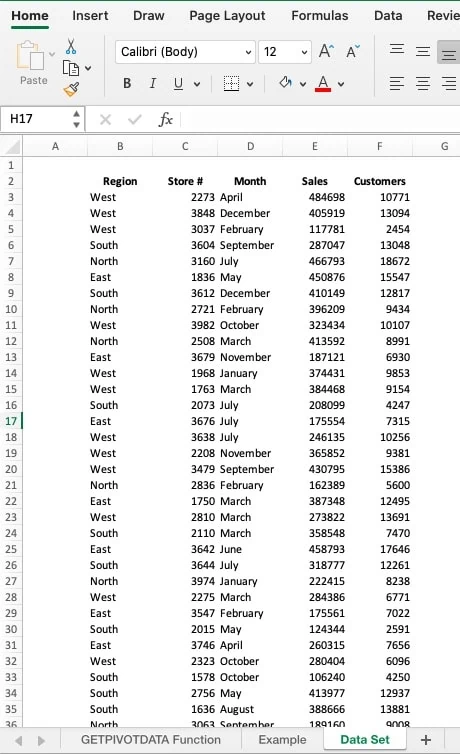
Now that we have the data, we will generate a pivot table using the data set. Let’s put regions across the columns, months down the rows, and sum sales.

Now let’s work with the GETPIVOTDATA function. First, we will pull total sales for the east region. The formula is =GETPIVOTDATA(“Sales”, $F$5, “Region”, C7). We want to pull Sales as the data field. $F$5 is the top left corner of the pivot table we want to pull from, and “Region” / “East” (linked to C7) is the data pair.
For the second example, we keep region and also add in “Month” as a second data pair.

Your turn: Use the workbook and GETPIVOTDATA to follow the examples in blue and finish the practice formulas highlighted in green. Hint, you will need to repivot the table.
Tips and Tricks
Better Together
GETPIVOTDATA works in tandem with any other function that can use a value. It pairs especially well with SUM, AVERAGE, MIN, and MAX Functions.
Watch Your Spelling
GETPIVOTDATA will return a #REF error if you misspell any of your entries or if it can’t find the field you are referencing. You will receive the same error if any of the cell references are entered incorrectly.
I’m Late For A Very Important Date
When working with the pivot table’s date format (or time format), use Excel’s “Date and Time” functions in the formula to ensure everything pulls correctly and in the same date format. Examples include DATEVALUE Function and DATE Function.
Turning GETPIVOTDATA On Or Off
Starting in Excel 2007, you can turn off automatic formula writing for GETPIVOTDATA functions using a command in the Excel Ribbon.
- First, select any cell in a pivot table.
- Then, go to the Ribbon and click the PivotTable Analyze tab.
- From there, click the arrow on the PivotTable command and then click the drop-down arrow for Options.
- Finally, click the Generate GETPIVOTDATA command, to turn the feature off or on.
Frequently Asked Questions
What are the advantages of GETPIVOTDATA?
Querying pivot table data with GETPIVOTDATA has several advantages. It’s much more efficient than writing a traditional formula for extracting values from a pivot table. It also makes formulas easier to read and understand since you don’t have to look up the internal names of each field when writing the formula. Additionally, querying with GETPIVOTDATA reduces the risk of errors since it can’t return incorrect values. When entered incorrectly, traditional formulas are prone to returning inaccurate results. Lastly, you can use GETPIVOTDATA to query multiple pivot tables at once and quickly get consolidated data from all tables.
What is the difference between GETPIVOTDATA and VLOOKUP in Excel?
Querying a pivot table with GETPIVOTDATA significantly differs from querying a table with VLOOKUP. VLOOKUP allows you to search for information in a specific column of one or more tables and then returns the corresponding value from any other column within that table.
On the other hand, GETPIVOTDATA queries a pivot table and returns data from any combination of rows, columns, or values in the table. It is not limited to returning only values from one specific column. GETPIVOTDATA also has the ability to reference hidden fields in your pivot table, which can be helpful when you need to query information that isn’t visible on the screen.
What is the difference between GETPIVOTDATA and SUMIFS in Excel?
GETPIVOTDATA and SUMIFS are both formulas in Microsoft Excel for finding data within a given set of criteria. The main difference between them is the type of data they search through. GETPIVOTDATA can retrieve data stored in pivot tables, while SUMIFS searches through a table or range of cells.
Quick Recap
GETPIVOTDATA allows you to pull data from a pivot table based on the pivot table’s structure, which can be extremely helpful when you need to get specific data from your table. This powerful function can save you much time when working with pivot tables.
Have any questions? Are there other topics you would like us to cover? Leave a comment below and let us know! Make sure to subscribe to our Newsletter to receive exclusive financial news right to your inbox