

Pivot Table Basics For Corporate Finance
Here’s the deal—Excel Pivot Tables are the ultimate secret weapon in corporate finance. No exaggeration. Imagine having a tool that lets you slice, dice, and transform mountains of raw data into crystal-clear insights within minutes.
That’s an Excel Pivot Table for you. Whether you’re breaking down last quarter’s expenses or hunting for trends in your headcount analysis, this Excel powerhouse can do it all—and make you look like an absolute data ninja while doing it.
But why should you really care about pivot table basics? Because pivot tables don’t just save time—they save sanity. If you’ve been manually summing rows or creating endless formulas to analyze data, it’s time to stop. Pivot tables will not only streamline your workflow, but they’ll also boost your data analytical skills to Jedi level.
Plus, if there’s one way to impress both the finance folks and the non-finance folks in your office, it’s by whipping up an interactive dashboard with pivot charts and slicers that basically tells the story of your data on its own. Trust me, you’ll walk out of that meeting feeling like the Tony Stark of spreadsheets.
Understanding Pivot Tables
What They Are
Alright, so what exactly is a pivot table? Think of it as the Swiss Army knife of Excel tools—it’s small but mighty, and it can get you out of a jam faster than you’d think. A pivot table takes mountains of data and transforms it into something you can actually work with.
Need to break down expenses by department? Compare quarterly sales across multiple regions? Spot trends without your eyes glazing over? A pivot table has your back.
The beauty is in its simplicity. You just drag, drop, and boom—you’ve got summaries, filters, and calculated insights—all without building a single formula. For finance pros like us, they’re an absolute game-changer.
Whether it’s slicing year-end numbers, analyzing headcount by team, or needing to analyze numerical data, pivot tables get to the point without wasting time. Want to turn hundreds of rows of raw data into an actionable summary? A few clicks, and you’re there. It’s like having an assistant who organizes your spreadsheets before you even ask.
What They’re NOT
Now, before we go on, let’s clear up some common pivot table myths. First up—no, they’re not as complicated as they sound. I know “pivot table” can sound a little intimidating, but trust me when I say this isn’t rocket science. People hear the word “pivot” and start thinking they need a computer science degree just to get started. Not true.
Second, a pivot table won’t magically fix messy data. If your spreadsheet is full of merged cells, random spaces, or inconsistent headers, a pivot table isn’t going to clean that up on its own. Cleaning your data and defining a proper data range? That’s your job.
A well-defined data range should encompass all necessary rows and columns without empty cells. Converting the data range into an Excel Table can also help, as it allows the range to dynamically adjust as data is added or removed. But once it’s ready, pivot tables work their magic effortlessly.
Finally, some folks think pivot tables only work for accountants or data analysts. Nope. Anyone who touches data—whether you’re in HR, operations, or sales—can use a pivot table to simplify life. They’re not exclusive; they’re inclusive. Excel has pretty much rolled out the red carpet for you.
Benefits of Using Pivot Tables in Corporate Finance
Pivot tables are a powerful tool in corporate finance, offering numerous benefits for data analysis and decision-making. Imagine having a magic wand that can transform heaps of raw data into clear, actionable insights with just a few clicks. That’s the magic of pivot tables. Here’s why they’re indispensable in the world of finance:
- Improved Data Analysis and Visualization: Pivot tables allow you to quickly summarize large datasets, making it easier to spot trends and patterns. Whether you’re analyzing quarterly sales or tracking expenses, pivot tables turn complex data into easy-to-understand summaries and charts.
- Enhanced Decision-Making Capabilities: With pivot tables, you can create interactive reports that provide real-time insights. This means you can make informed decisions faster, optimizing financial performance and driving business growth.
- Increased Productivity and Efficiency: By automating data analysis tasks, pivot tables save you hours of manual work. No more endless formulas or tedious data entry—pivot tables streamline your workflow, allowing you to focus on strategic tasks.
- Better Collaboration and Communication: Pivot tables make it easy to share insights with your team. Interactive dashboards and reports ensure everyone is on the same page, improving collaboration and communication across departments.
- Ability to Identify Trends and Patterns: Pivot tables help you uncover hidden trends and patterns in your financial data. Whether it’s spotting seasonal sales spikes or identifying cost-saving opportunities, pivot tables provide the insights you need to stay ahead of the curve.
In short, pivot tables are your secret weapon for turning data into decisions. They don’t just make your job easier—they make you better at it.
When to Use Them
Pivot tables shine brightest in corporate finance, where we’re buried in data every day. Here are just a few examples when pivot tables can swoop in and save the day:
- Forecasting: Whether you’re looking at revenue growth or operating expenses, pivot tables make it insanely simple to compare time periods and spot trends.
- Budgeting: Quickly summarize expense categories or departmental costs to figure out where the money’s flowing. Pivot tables help you drill down to the details without losing sight of the big picture.
- Headcount Analysis: HR and finance teams, take note. You can use pivot tables to analyze departments, locations, roles, and even anticipate hiring needs based on trends.
- Variance Reporting: If you’ve got an angry VP breathing down your neck for ROI numbers or yearly expense variances, pivot tables are your lifesaver. They make it so much easier to compare actuals versus forecasts without endless scrolling.
Bottom line? If the task at hand involves slicing through buckets of data to find actionable insights with minimal effort, pivot tables are your go-to tool. You don’t need to be an Excel ninja to use them, but once you do, it might just make you feel like one.
Setting Up Your First Pivot Table
Creating a pivot table might sound fancy, but trust me—it’s easier than ordering your daily coffee. Here’s a step-by-step guide to pivot table basics and getting started:
Step 1: Prepping Your Data

Before we even think about pivot tables, your data needs to be on its best behavior. It’s like setting the stage for a Broadway show—your data needs to be clean, organized, and ready to shine. Here’s how:
- Consistent Headers: Make sure every column has a header, and no two headers are duplicates. Spelling mistakes, random capitalizations, or blank headers? Fix them now—your pivot table won’t play nice with a hot mess.
- No Blanks: Empty cells can confuse your pivot table. Fill gaps with placeholders like “0” or “N/A,” or remove unnecessary rows altogether.
- Remove Random Spaces: A sneaky space in your data can break everything. Use Excel’s “TRIM” function to get rid of those hidden troublemakers.
- Format Data as a Table: Highlight your data, hit “Ctrl+T” (or “Cmd+T” on a Mac), and voila! Your data is now an official Excel Table, which makes it easier for Excel to recognize ranges for your pivot. Using an Excel Table also enhances data management by making ranges dynamic, automatically adjusting as data is modified, and simplifies sorting, filtering, and overall formatting for efficient data analysis.
Think of this step as stretching before a workout. Skip it, and you might pull a muscle—or worse, create a pivot table so messy even you don’t know what’s going on.
Step 2: Time to Pivot
Now the fun begins. Here’s how to get that pivot table up and running:
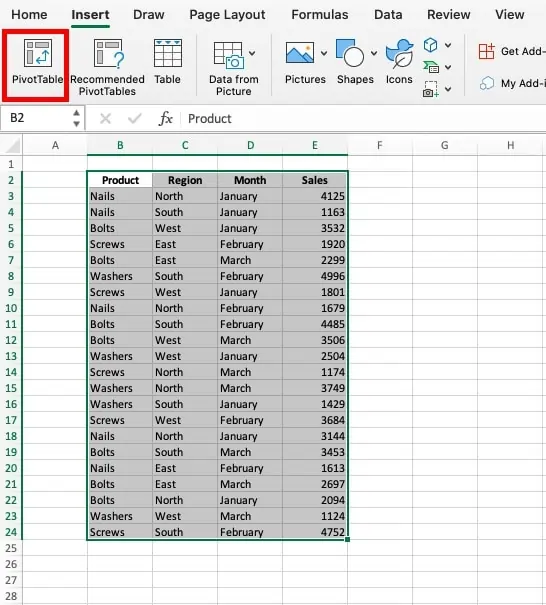
- Select Your Data: Highlight the entire range of your data, including headers.
- Find the Pivot Table Button: Head to the Insert tab on the ribbon (that’s the menu up top), and there it is—the holy grail. Click “Pivot Table.”
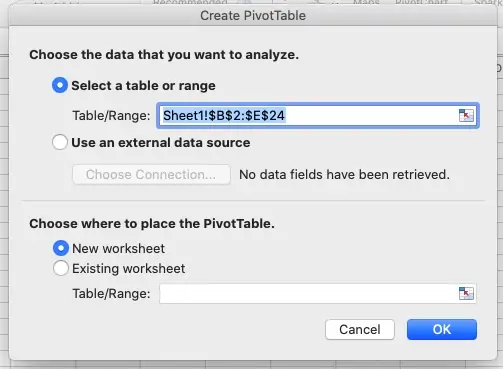
- Choose Where It Lives: Excel will ask you where to place your pivot table—new worksheet or existing worksheet. I usually go for a new sheet so I have a fresh canvas, but hey, you do you.
- Confirm: Press OK. Congrats, you’re officially in a blank pivot table setup, staring at the “PivotTable Fields” pane.


Step 3: Drag and Drop Magic
Now comes the part that makes pivot tables legendary—the drag-and-drop interface. Here’s the breakdown:
- Rows: Think of row labels as the categories you want to analyze. For example, “Departments” or “Products.”
- Columns: These create subcategories for your rows. Say you’ve got sales data—columns could show you months or regions.
- Values: This is where the math happens. Drag and drop what you want summarized (sales, costs, hours worked), and Excel will automatically calculate sums, averages, or counts for you.
- Filters: Want to focus on only one department or region? Use filters to zero in on the data you care about.
The beauty of pivot tables is how interactive they are. Drag something into row and column labels to see how it looks, mess around, and don’t be afraid to experiment. If you don’t like what you see, just drag it out again—easy peasy.

Columns will become the column header, rows the row header, and values will be the data. Within columns and rows, you can stack headers to have multiple categories and subcategories. Within values, you can run equations to sum, divide, multiply, etc.
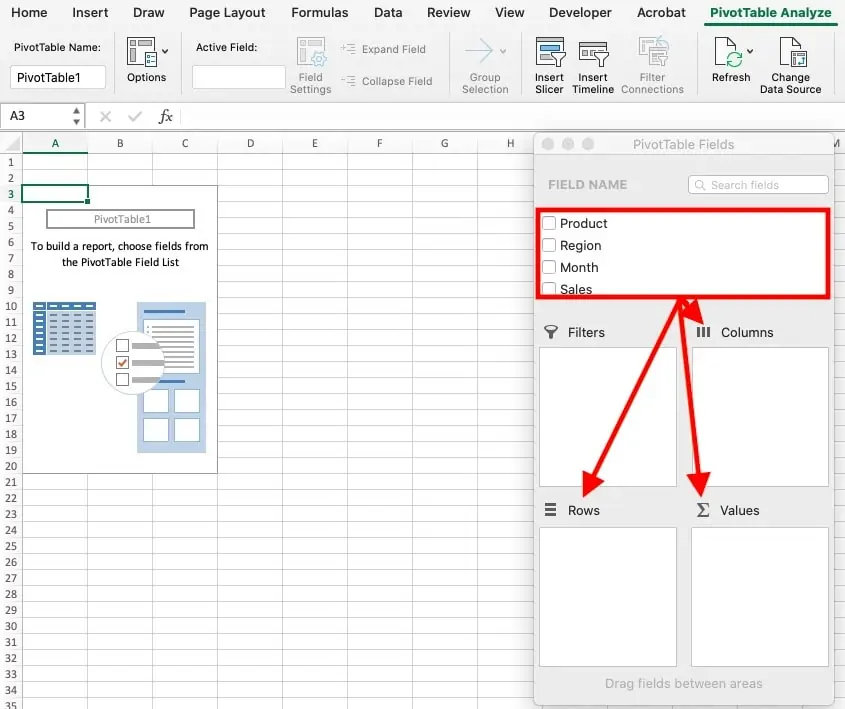
For this example, we want to set up months as the column headers and then look at sales by region, by product. Here is how we would set that up:
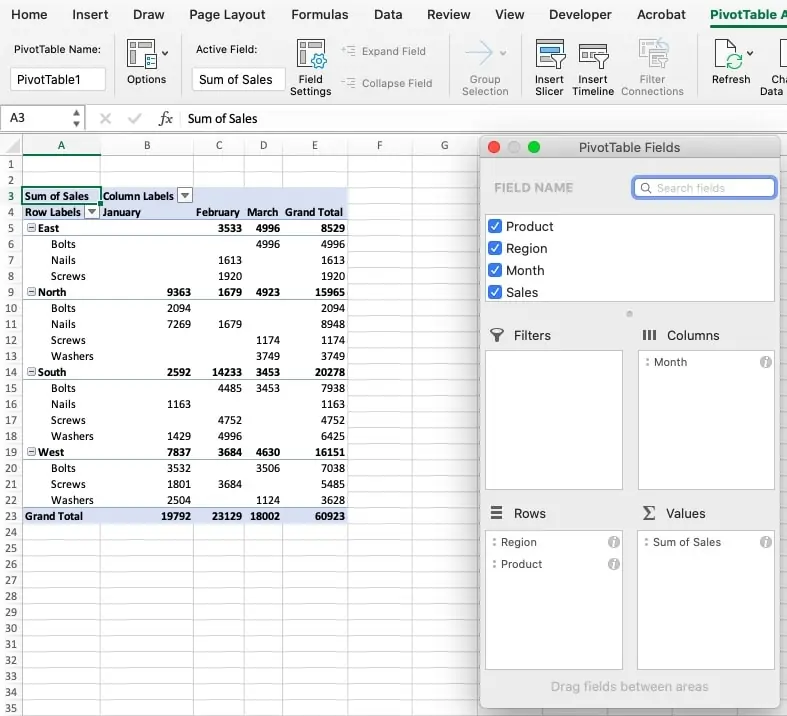
Now, let’s say we want to focus on the performance of each region. Drag region from rows to columns and drag months from columns to row below product. The Pivot Table will update automatically with your new analysis. From here, you can format the table just like any other sheet in Microsoft Excel.

Troubleshooting
No guide is complete without a “What did I just do wrong?” section. Here are some common hiccups and how to fix them:
- Incorrect Range: If your pivot table isn’t showing all your data, double-check that you selected the full range during setup. Misclicking happens.
- Weird Results or #Value! Errors: Most of the time, this means your data isn’t clean (looking at you, random text in a column of numbers). Do another data sweep to ensure consistency.
- Blank Pivot Table: Don’t panic. This usually means you haven’t dragged anything into the fields yet. Go back to Step 3 and start dropping columns and rows like a pro.
- Totals and Calculations: A pivot table automatically shows totals for rows or columns when created. It can also automatically calculate percentages of totals, providing a deeper analysis of data. For example, you can enter quarterly sales data into a pivot table and then modify it to display the contribution of individual products to the overall sales total.
Remember, Excel isn’t out to get you. Issues usually boil down to messy data or a missed step. Fix those, and you’ll be back to crunching numbers like a boss in no time.
Analyzing Data with Pivot Tables
Sorting and Filtering

Once your pivot table is set up, the real magic starts with sorting and filtering. Seriously, this is where you go from staring at chaos to being in total control.
- Sorting Like a Pro: Sorting your data is as simple as clicking a dropdown. Need to rank departments by cost in descending order? Easy. Want to see which quarter had the fewest sales? Done. Go to the Data tab in the top navigation bar, right-click on the data in your Rows or Columns fields, choose “Sort,” and go with ascending or descending order. Boom—your numbers are perfectly organized across the entire pivot table.
- Using Filters Without Tears: Filters are your ultimate shortcut for answering those “What if?” or “But what about?” data questions. Say you only want to see sales for a particular region or department—just drag the field into the Filters box. Then use the dropdown menu above your pivot table to select the specific slice of data you’re after. Sorting and filtering together makes you look like you’ve been crunching data all night when, in reality, it only took you five minutes.
Aggregating Data
Now, here’s one of the best parts of pivot tables—they do math for you, no calculator or formulas needed. It’s as close to magic as corporate finance gets.
- Summing: Want to know the total expenses for the marketing team? Drag the expense field into Values, and Excel auto-sums it for you.
- Counting: Need to count the exact number of transactions in a month? Yep, pivot tables can handle that too. Just right-click in the Values field, choose Value Field Settings, and switch it to “Count.”
- Averages: Want to calculate the average sales per quarter? Same process as summing, just adjust the field settings to “Average.”
And if you want to get fancy, you can even customize calculations, like showing percentages or tracking growth over time—all without breaking a sweat.
Quick Reports
Now for the pièce de résistance—creating lightning-fast reports. Here’s how you can whip up an expense summary or sales tracker in no time at all.
Step 1: Start with your pivot table set up and your data cleaned. We’re talking polished and ready to go.
Step 2: Drag the report categories into your Rows box. For an expense summary, this could mean dragging “Departments” or “Expense Types.” For a sales tracker, it might mean “Products” or “Regions.”
Step 3: Drop your financial data, like “Expenses” or “Sales,” into the Values box. Watch your pivot table populate with totals automatically.
Step 4: Add a filter or two to narrow things down. For example, you can filter by date range if your boss only wants last month’s numbers.
Step 5: Polish it up! Rename fields, add bold headers, or even throw in a data bar from the Formatting tools to make it pop (and make you look extra thorough).
Ta-da! You’ve got a clean, professional report ready to share before the coffee’s even cooled down. Analysts, managers, and maybe even the CFO will be dazzled by how quickly you pulled this together.
Advanced Features and Tips
Once you’re comfortable with the basics, it’s time to level up and explore some advanced pivot table features, including various pivot table layouts. These tips will take your data analysis from good to downright impressive.
Calculated Fields and Value Field Settings
If you’ve ever stared at a pivot table and wished it could do just a bit more math, calculated fields are your new best friend. They’re like adding a custom formula directly inside your pivot table—no extra rows, columns, or chaos needed.
Here’s how it works:
- Select any cell in your pivot table, then go to the PivotTable Analyze tab at the top.
- Click Fields, Items, & Sets, then select Calculated Field.
- A dialog box will pop up. Name your new field and write your formula. For example, if you’re calculating profit, you might subtract “Expenses” from “Sales.”
- Hit OK, and just like that, your pivot table gets a fancy new field with the results calculated for you.
Whether you’re calculating margins, ROI, or cost-per-unit, calculated fields are a game-changer for quick manipulations. Plus, they save you the hassle of building extra columns in your raw data.
Combining Multiple Tables
Ever wish you could blend data from more than one sheet into a single pivot table? You absolutely can. Say goodbye to copying and pasting rows from 15 different sources just to analyze them.
To combine tables:
- Head to the Data tab and click Get Data, then select Combine Queries > Append Queries.
- Select the sheets or tables you want to merge and make sure they’re formatted with consistent headers.
- Use the Power Query Editor to clean and organize the combined data before loading it back into Excel.
- Create a pivot table from this new “super table,” and you’re off to the races.
This is perfect for scenarios like merging department expenses across multiple regions or tracking sales from several product lines. More data, less chaos.
Grouping Data
Grouping is where your pivot tables start showing off. This feature lets you bundle dates and numbers into ranges that make sense, simplifying trend analysis and opening up new levels of insights.
For example:
- Group Dates: Right-click on a date field, choose Group, and voila—you can group by days, months, quarters, or even years. Analyzing weekly revenue or quarterly trends? Done in seconds.
- Group Numbers: Got crazy-high sales values ranging from $100 to $10,000? Right-click, hit Group, and set number ranges (e.g., $100-$1,000, $1,001-$5,000). Now you’re looking at meaningful data clusters instead of a sea of numbers.
Grouped data is like the espresso shot of pivot tables—it simplifies the details but keeps the flavor intact.
Visualizations
Finally, give your pivot table the ultimate glow-up with pivot charts. Whether you’re presenting to your boss or just trying to make sense of overwhelming data, visuals make a huge impact.
Here’s how to create one:
- Click anywhere in your pivot table, then go to Insert > Pivot Chart.
- Pick a chart type (bar, line, pie—whatever speaks to you).
- Customize it with labels and titles to fit your narrative.
Pivot charts are interactive, just like a pivot table. Adjust your filters or rows, and the chart updates instantly. Use them to highlight trends, showcase comparisons, or just add some pizzazz to your numbers. Trust me—your data presentations will thank you.
And there you have it—advanced pivot table mastery! With calculated fields, merged tables, grouped data, and visualizations, you’ll have everything you need to dig deeper, work smarter, and impress harder. What’s not to love?
Epic Pivot Table Creation With Slicers
Slicers might just be the best thing since Ctrl+Z. They’re like the VIP of pivot table tools—interactive, sleek, and ridiculously intuitive. If you’ve been filtering your pivot tables manually, you’re about to ditch those dropdown menus forever.
What Are Slicers?
Think of slicers as interactive filters that anyone can use without breaking a sweat—yes, even your manager can get this right on the first go. They’re big, colorful buttons that allow you to slice and dice your data instantly. Want to filter sales by region? Click. Need to isolate data for a single quarter? Click again. It’s like having a remote control for your pivot table.
Adding Slicers to Your Pivot Tables
Here’s how you can sprinkle some slicer magic onto your pivot table in no time flat:
- Select Your Pivot Table: Click anywhere on your pivot table to activate the tools.
- Locate Slicers: Go to PivotTable Analyze in the ribbon, then hit Insert Slicer. A dialog box pops up with all your available fields.
- Pick Your Fields: Select the fields you want to filter—like “Department,” “Region,” or “Quarter.” Keep it relevant to your data needs.
- Place and Resize: The slicer appears on your sheet as a neat little box. Drag it to where you want it and resize as needed.
Pro tip? Don’t go overboard. Too many slicers can make your dashboard look like a cluttered game of Tetris. Start with 2-3 key fields and build from there.
Why Use Them
Slicers bring simplicity and speed to your pivot tables. Instead of navigating dropdown menus, you get one-click filtering that’s right in front of you. Visual and easy to use, slicers save time when you’re trying to answer questions on the fly. Boss asks about last quarter’s expense breakdown? Boom—filtered instantly.
Better yet, they’re intuitive enough for anyone to use. No more trying to explain filters to someone over email. Just set them up, and your team can self-serve their data insights like pros.
Decorating Your Dashboard
Now here’s where slicers truly shine. They don’t just work—they look good while doing it. Once added, slicers instantly turn your vanilla pivot table into a dynamic, user-friendly dashboard.
You can format them with colors, styles, and alignments to make everything pop. Drag and place them to keep your dashboard clean and organized. Add slicers for crucial fields like time periods, regions, or product categories—and suddenly, your data isn’t just pretty; it’s accessible at a glance.
Pair slicers with pivot charts for a dashboard experience that’s as functional as it is impressive. Whether it’s for your next meeting or just to make your life easier, slicers make sure your data presentation delivers.
Pro Tips
Want to take your slicer game to the next level? Try these advanced tricks:
- Link Slicers to Multiple Pivot Tables: If you’re juggling several pivot tables that share fields, you can sync all the slicers together. Select a slicer, go to Slicer Tools > Report Connections, and check the boxes for each pivot table. Now, one slicer filters them all.
- Use Clear Button for Instant Reset: Don’t forget the handy little Clear Filter button in the slicer box. It’s perfect for quickly resetting your data view without undoing your work.
- Keep Slicers Visible: Design your dashboard layout so slicers are front and center. This keeps the user experience seamless and ensures whoever’s using it can’t miss them.
With slicers, your pivot tables go from good to incredible. They bring efficiency, clarity, and a whole lot of flair to your reports, making you the undisputed hero of data analysis.
Pivot Charts
If pivot tables are the workhorses of data analysis, pivot charts are their flashier, more confident siblings—the ones you bring to presentations when you really want to impress. They take the hard work of your pivot tables and turn it into visuals that are not just pretty but powerful.
What Are Pivot Charts?
Pivot charts are like pivot tables that graduated with honors from art school. They take the same data and insights but show them off in a way that’s easy to digest (and dare I say, fun to look at). Whether it’s trends over time, comparisons between categories, or a breakdown of expenses, pivot charts make your data tell a story. Think of them as the visual storyteller to your analytical powerhouse.
Building Your First Pivot Chart
Creating a pivot chart is almost embarrassingly easy—and trust me, it’s worth the effort. Here’s your step-by-step guide to going from raw data to polished visuals in minutes.
- Start with a Pivot Table: If you don’t already have a pivot table, set one up—it’s the foundation for your chart.
- Highlight Your Pivot Table: Select any cell within it to show the pivot tools in the ribbon.
- Insert Your Chart: Head to the Insert tab, click PivotChart, and choose your chart type from the menu. (Pro tip: Bar charts are great for comparisons. Line charts shine with trends. Pie charts? Perfect for showing proportions.)
- Polish It: Add some flair—titles, data labels, or legend positioning. Customize the colors to match your company branding or just make it pop. Remember, readability is priority number one.
Voilà! You now have a pivot chart that looks sharp and works even harder.
Why Charts Matter
Numbers are great for the data-savvy among us, but not everyone is on Team Spreadsheet. This is especially true when presenting to executives or stakeholders who glaze over when they see rows and columns. Pivot charts simplify complex data into visuals that are easy to grasp at a glance—trends, outliers, and patterns practically leap off the page.
Think about it:
- Show your CFO a 10-column table of sales figures, and watch their eyes blur over. Show them a pivot chart illustrating sales growth by region, and suddenly, they’re engaged.
- Got to highlight quarterly performance in a meeting? A line chart does the heavy lifting far better than pointing at numbers on a screen.
Pivot charts bridge the gap between data professionals and visual thinkers. They make your insights not just understandable but memorable.
Leveling Up
When you’re ready to go pro with pivot charts, it’s time to bring slicers into the mix. This dynamic duo creates interactive visualizations worthy of a TED Talk.
Here’s how to link them:
- Add Slicers: Insert slicers using the steps mentioned earlier. Choose relevant fields like dates, regions, or categories.
- Connect Slicers to Your Chart: Click on a slicer, go to Slicer Tools > Report Connections, and check your pivot chart’s corresponding table.
- Test the Magic: Click around on the slicer buttons, and watch your pivot chart update live. Filters and visuals in sync—now that’s what I call presentation gold.
With this setup, you’ve got an interactive dashboard where anyone—even the most Excel-averse—can explore data hands-on and pull insights without needing instructions. It’s a powerful tool for meetings, reporting, or just showing off your next-level Excel game.
Once you start using pivot charts, every report with just static numbers will feel incomplete. They add context, clarity, and a serious visual upgrade to your analysis. And with slicers in the mix? It’s game over—you’re officially an Excel legend.
Real-Life Case Studies
If pivot tables were just theoretical tools, they wouldn’t have such a cult following. The real magic is seeing how they transform messy data into streamlined processes and insightful decisions. Here are three real-life pivot table examples that showcase their versatility in managing different types of data, saving the day—and then some.
Case Study 1: Monthly Expense Reporting for a Mid-Sized Company
Before pivot tables, the monthly expense report for this mid-sized company was the stuff of nightmares. Endless spreadsheets, manual calculations, and double-checking formulas meant late nights and more than a few side-eyes from the finance team. But then—drumroll—they discovered pivot tables.
Here’s what changed:
- Efficiency Boost: Instead of manually summing and categorizing expenses, pivot tables automated the process. Categories like “Travel,” “Office Supplies,” and “Marketing” were easily laid out with totals calculated instantly.
- Dynamic Insights: Need to see expenses by department? Drag and drop. Want a monthly breakdown? One click. No extra worksheets, no extra hassle.
- Slicer Magic: Adding slicers allowed stakeholders to filter expenses by department or region themselves. No more “Hey, can you send me the numbers for California?”—the report did it all.
The result? Hours saved every month, cleaner reports, and a finance team that suddenly had time to breathe—and maybe even grab coffee.
Case Study 2: Sales Trends and Forecasting for a Growing Startup
Startups thrive on growth, but tracking that growth? Not so fun when it’s buried in raw sales data. For this growing startup, mapping trends and forecasting was a struggle—until pivot tables, slicers, and charts entered the scene.
Here’s how they nailed it:
- Trends Over Time: Pivot tables grouped sales data by month and year, revealing seasonal patterns they hadn’t noticed before.
- Categorical Insights: Slicers sliced (ha) data by product type, letting them focus on bestsellers or troubleshoot underperformers with ease.
- Visual Forecasting: Pairing pivot charts with sales data allowed them to present trends visually. They even projected future sales based on historical growth rates (and executives love future projections).
The outcome? The team wasn’t just tracking sales anymore—they were forecasting and strategizing with data-driven confidence. And investors? Very impressed