
The Easy Guide To Pie Charts In Excel
Pie charts are one of the simplest and most common ways to visualize data, giving you a neat little circle sliced up to show how parts fit into a whole. Whether you’re tracking last month’s expenses to figure out where all your money went (spoiler alert: coffee probably took a solid chunk), breaking down revenue contributions across product lines, or analyzing how you spend your precious free time (does Netflix count as a category?), pie charts make it easy to see the big picture at a glance.
This guide is here to walk you through everything you need to know about creating pie charts in Excel, from the basics of making one to advanced tricks that’ll have your coworkers wondering how you got so good at data visualization. We’ll soup up those plain charts with customization tips and cover real-world examples so you can put your new skills to work immediately. It’s easy to create a pie chart in Excel, and you can choose from different pie chart styles to enhance the visual appeal.
Of course, while pie charts are a handy tool, they can also veer into the “this is chaos” territory when not used wisely. Ever seen a pie chart with 20 tiny slices in 47 shades of blue? Yeah, we’re not doing that here. Sometimes it’s best to put down the pie slicer and opt for a different type of chart. But when done right, pie charts can be an absolute game-changer.
Grab your data, and let’s dig into the world of pie charts—where Excel meets a slice of visual clarity (and hopefully not data confusion).
Understanding Pie Charts
Picture this: you’ve got a bunch of data, and you want to call out how different pieces contribute to the bigger picture. Enter the pie chart, the ultimate go-to for showing portions of a whole. Visually, it’s just as simple as it sounds—imagine a circular pie divided into slices, each one representing a percentage of the pie (and the data). The bigger the slice, the greater its contribution. Easy peasy, right?
Now about the name—it’s literally because it looks like a pie. Think about it. Pizza? Pie. Cake? Also kind of pie. Someone clearly got hungry while brainstorming this one. And honestly, isn’t everything just a little better when there’s pie involved? Except maybe when you try to cram 50 slices into one; then we’re more on the “why does this exist” train.
When to Use a Pie Chart

Here’s the deal with pie charts—they’re simple, visual, and straight to the point. If your data shows parts of a whole that adds up to 100%, you’ve got yourself a prime candidate for a pie chart. Accessing the Insert tab in Excel is the first step in creating a pie chart.
Examples of when pie charts are a match made in data heaven:
- Tracking expenses: Want to know how much of your money goes to rent versus that suspiciously high “miscellaneous” category? Slice it up with a pie chart.
- Revenue breakdowns: Showcase sales contributions from your product categories, because yeah, one product probably IS carrying the team.
- Time allocation: Ever wonder how much time you spend scrolling social media versus actual work? Spoiler alert—you won’t like the pie slice for work.
Best practices for pie perfection:
- Keep it simple. Stick to 5-7 categories max. Anything more, and you’re just overwhelming everyone (including yourself).
- Data must add up to 100%. This isn’t the kind of pie that needs leftovers.
- Use it for quick comparisons, not deep analytics. It’s a snapshot, not the whole novel.
When NOT to Use a Pie Chart
Pie charts are awesome, but they’re not the multitool of the chart world. Throw too much data at it, and suddenly your “neat pie” is more like abstract art.

Avoid pie charts when:
- You have 20+ slices. Nobody wants that kaleidoscope of chaos on their screen. Trust me on this.
- Your data doesn’t represent a whole. If the sum isn’t 100%, just step away from the pie chart.
- You need detailed side-by-side comparisons. Pie charts don’t do deep dives; they skim the surface.
To sum it up, pie charts are like dessert—they’re a treat when used sensibly, but don’t try to live on them alone. Stick to the basics, use them wisely, and you’ve got a surefire way to make your data pop without giving your audience a headache.
Creating a Basic Pie Chart in Excel
Alright, folks, it’s time to roll up your sleeves and get into the nitty-gritty of pie-chart making. Whether you’re trying to visualize where all your money mysteriously went last month or dividing up sales between your star products, the steps are refreshingly straightforward. Here’s how you can whip up a pie chart in Excel faster than your next coffee break.
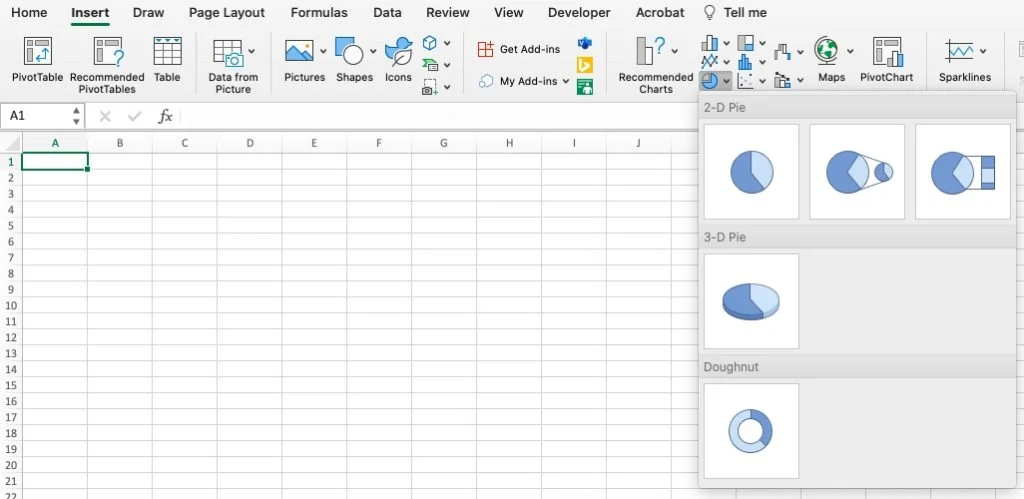
Under the Charts group, look for the little pie icon (yes, it literally looks like a tiny pie). Click pie to select the type of pie chart you want to create.
Downloadable Excel Workbook
Live Video Walk-Through
Step 1: Organizing Your Data
First things first—your data needs to be in tip-top shape. Excel is like that picky friend who needs everything neat and tidy before they’ll cooperate. Make sure your data is:
- Arranged in two columns (e.g., categories and values).
- Free from unnecessary clutter (no blank rows or extra headings).
Example Dataset
Here’s a basic dataset for tracking monthly expenses:

This setup is exactly what Excel needs to make your pie chart magic happen.
Step 2: Selecting Your Data
Next, it’s time to highlight the data you want to transform into a chart.
- Click and drag to select both the category and value columns (don’t include any extra headers that aren’t part of the data).
- For the dataset above, you’d highlight from “Rent” to “Miscellaneous” in the first column and the corresponding numbers in the second column.
Pro tip? Be sure to double-check your selection. Accidentally including extra cells leads to chaos, not clarity.
Step 3: Creating the Chart


Here’s where the fun starts—turning that data into a pie chart in a few simple clicks:
- With your data selected, head up to the Insert tab in the Excel ribbon at the top of your screen.
- Under the Charts group, look for the little pie icon (yes, it literally looks like a tiny pie). Click on it. Clicking on the pie chart icon will allow you to choose from different pie chart types.
- You’ll see different chart options like 2-D Pie, 3-D Pie, and Donut Chart.
- If you’re new to this, start with 2-D Pie—it’s clean, simple, and universally loved.
- Feeling adventurous? Go for the 3-D Pie to add depth (but be warned, it can sometimes overcomplicate things).
Boom. Just like that, a shiny pie chart appears in your sheet, ready for you to admire.
Customizing Your Pie Chart
Okay, now that you’ve conjured up your pie chart, it’s time to give it some personality. Nobody wants a bland, forgettable chart, so let’s turn your data donut into something that looks as juicy as the insights it delivers. From colors to labels to titles, here’s how to customize your pie chart like a pro. Users can access the Format Chart Area to modify the background and other visual elements.
Labels are the GPS for your slices, helping everyone quickly see the “who, what, and how much.” The Format Data Labels pane allows for detailed customization of data labels.
Customizing Colors and Styles


Default Excel color schemes? Boring. A pie chart without vibrant slices is like a pizza with no toppings—it works, but it doesn’t wow anyone. To jazz it up:
- Click anywhere on your chart to select it.
- Head over to the Chart Tools section that pops up on the Excel ribbon.
- Click on Format or Design, then choose Change Colors for a variety of pre-set palettes.
- Feeling creative? Right-click on an individual slice and hit Format Data Point to choose custom colors. Go ahead, make it neon green if that’s your vibe.
Try Excel’s Pre-set Templates
For a quick upgrade, Excel has some snazzy pre-set templates that transform your chart style instantly.
- Click on your chart and go to the Design tab.
- Scroll through the predefined chart styles and pick one that screams, “Look at me, I’m important!” You’ve got options ranging from sleek and modern to bold with 3D effects.
These templates do a lot in a pinch to bring your chart from “meh” to “wow.”
Adding Labels To Pie Charts In Excel
A pie chart is only as good as the clarity of its data. Labels are the GPS for your slices, helping everyone quickly see the “who, what, and how much.” Want to show percentages instead of raw numbers? Right-click on any label and click Format Data Labels to choose the percentage option.
Adding Values or Percentages
- Click on your chart and then go to the Chart Elements button (that little plus icon on the top right of your chart).
- Check the box for Data Labels, and voilà, Excel slaps labels onto your slices.
- Want to show percentages instead of raw numbers? Right-click on any label, hit Format Data Labels, and choose the percentage option.
Placement Options
You’re not stuck with labels plopped somewhere random, don’t worry:
- Inside slices: Great for big slices where the text fits neatly (and it looks cool).
- Outside slices: Useful for smaller slices so you’re not micro-reading.
- Best fit: Excel tries, bless its heart, to find the least intrusive placement. Test it out and see what works for you.
Adding Titles and Legends
The Title
A chart without a title is like a nameless dog—adorable but confusing. Here’s how to name your masterpiece:
- Click on your chart, then click on Chart Title (usually at the top of the chart by default).
- Replace the placeholder text with something more descriptive, like “February Expenses Breakdown” or “Why Netflix Owns My Free Time.”
- Bonus tip: If you don’t see a title, head back to the Chart Elements button and enable it.
Adding (or Fixing) the Legend
That little box off to the side showing slice categories? That’s your legend, and yes, it’s important.
- Click on your chart and tap Chart Elements again to enable or adjust the legend.
- Legends can be placed at the top, bottom, left, or right of your chart. Choose what looks balanced and doesn’t crowd anything else.
- Want to rename a category? Edit it directly in your data table, and Excel will update the legend automatically. Pro tip—short and clear labels always win.
Advanced Tips And Tricks For Pie Charts In Excel
Alright, so you’ve built your pie chart, customized it to perfection, and now you’re thinking, What’s next?. If you’re ready to level up, buckle up, because we’re about to dive into some advanced Excel features that can take your pie charts from “functional” to “wow, did you make this?!”
Exploded Pie Charts

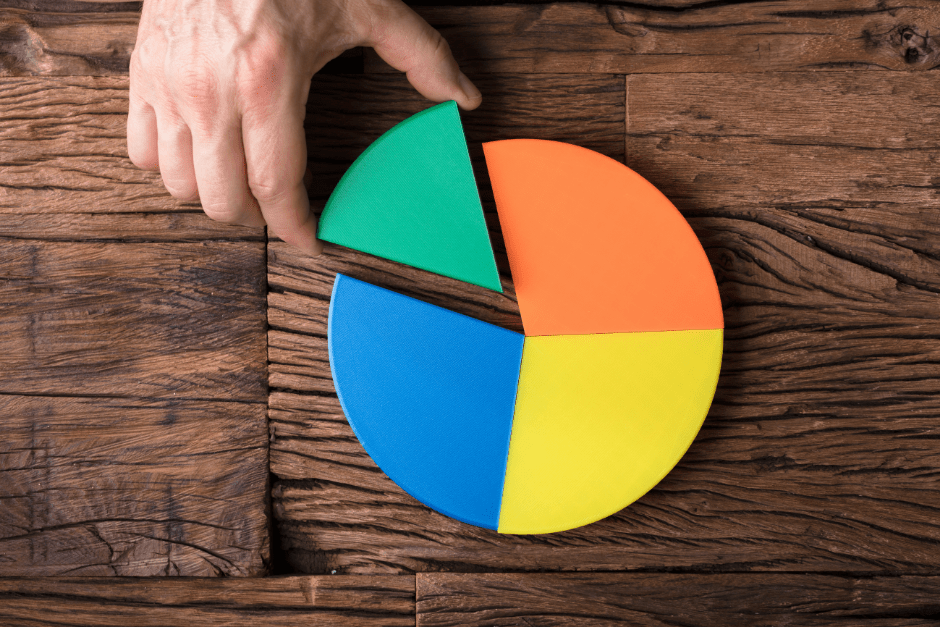
Ever want to shout, “PAY ATTENTION TO THIS PART!” without actually shouting? Enter the exploded pie chart, where one slice literally breaks free from the pie to grab the spotlight. It’s perfect when you want to emphasize top contributors or outliers in your data.
Here’s how to make it happen:
- Click on your pie chart to select it.
- Click once more on the slice you want to highlight. (Not the whole pie—just the single slice!)
- Drag the slice outward using your mouse. Boom, it’s like that slice just jumped off the platter saying, “Look at me!”
Pro tip? Use this sparingly. It’s great for focus, but too many exploded slices, and your pie chart starts looking like a data explosion instead of a neat visualization.
Using the “Format Data Series” Tool
Need even more control over how your chart looks? The Format Data Series tool is your backstage pass to some serious fine-tuning.
- Right-click on any slice or area of your pie and select Format Data Series.
- Inside the menu, you’ll find options like Angle of First Slice (rotate the whole pie) and adjusting the Doughnut Hole Size (if you’re using a doughnut chart).
- Experiment until you’ve got the perfect balance of aesthetics and readability.
It’s like turning Excel into your design playground.
Adding a Secondary Pie or Bar Chart
Sometimes, the “Other” slice in your pie chart becomes an overwhelming black hole of ambiguity. How do you break that big chunk into something more digestible? Easy—call in reinforcements by creating a Pie of Pie or Bar of Pie chart.
Here’s how to do it:
- Select your chart and click on Change Chart Type under the Chart Tools > Design ribbon.
- Choose Pie of Pie or Bar of Pie from the pie chart options.
- Excel will automatically split the smallest slices (e.g., “Other”) into a secondary pie or bar chart for better clarity.
Real-Life Example
Say you’re tracking expenses, and the “Other” category includes “Subscriptions,” “Coffee,” and “Random Amazon Purchases” (hey, we’ve all been there). Instead of lumping it all together, a secondary chart can break it down so you don’t have to stress about what’s lurking under “Other.”
Linking Your Pie Chart to Dynamic Data
Want your chart to update automatically as your data changes? This advanced trick makes your pie chart dynamic and ensures you’re always working with the latest numbers.
Here’s how:
- Link your data source to a named range in Excel. For example, if your data table is growing over time, use Ctrl + T to convert it into a table. Tables automatically expand as you add new rows.
- Ensure your pie chart references the data in this table. When you add or change data, your chart will adjust live—no manual rework needed.
- Optional geeky bonus move? Use a formula like OFFSET or INDEX to control ranges dynamically. This is the Excel wizardry that keeps your pie chart fresh without you lifting a finger.
Bringing It All Together
Advanced pie chart tricks aren’t just for show—they’re there to make your insights clearer, your charts smarter, and your job easier. Whether you’re emphasizing a single slice, drilling down into subcategories, or linking to live data, these features bring versatility and power to your Excel skills. Now go make some magic—with a side of pie, of course.
Real-Life Case Studies
What better way to highlight the power of a pie chart than by showing how it thrives in real-life scenarios? Below are two detailed examples that bring pie charts to life, proving they’re not just useful but also a little magical when done right.
Case Study 1: Small-Business Budget Breakdown
Meet Sarah, a small-business owner juggling the never-ending task of managing expenses. She’s running a cozy coffee shop and wants to get a clear picture of where her money goes each month. With Excel by her side, Sarah creates a pie chart to visualize her budget distribution.
Example Dataset
| Category | Amount (USD) |
|---|---|
| Rent | 2,000 |
| Supplies | 500 |
| Staff Salaries | 3,000 |
| Utilities | 400 |
| Marketing | 300 |
| Miscellaneous | 100 |
Using this data, Sarah:
- Inserts a 2-D pie chart to quickly see how much of her budget is consumed by major expenses. (Spoiler alert: staff salaries rule the pie.)
- Customizes the chart by changing colors—rent is a serious red, salaries shine in soothing teal, and utilities mellow out in grey.
- Enables percentage labels on the slices for clarity, so everyone knows exactly what 50% of the budget means without doing mental math.
The result? Sarah’s pie chart is not only easy to read but visually striking, turning her Excel chart into a budget superhero. Now, she can confidently make informed decisions, like whether to scale back marketing or negotiate rent.
Case Study 2: Sales Contributions of Product Categories
Next up, we have Jason, who works for a mid-sized tech company. His task this quarter? Showcase how different categories of products contribute to overall revenue. Think flashy graphs for a boardroom meeting—that’s where pie charts come to the rescue.
Example Dataset
| Category | Revenue (USD) |
|---|---|
| Software Packages | 75,000 |
| Hardware | 50,000 |
| Maintenance Plans | 25,000 |
| Accessories | 15,000 |
Jason:
- Creates a pie of pie chart to make “Accessories” and “Maintenance Plans” more visible instead of lumping them into an ambiguous “Other” slice.
- Labels each slice with both percentages and revenue amounts for storytelling clarity. (There’s no guessing how 10% translates into actual dollars.)
- Adds a descriptive title (“Q3 Sales by Product Category”) and places the legend strategically on the right for visual balance.
The result? Jason’s pie chart doesn’t just look good—it tells a story. The sales team can now quickly see which categories are driving revenue and which ones might need a boost, all at a glance.
Lessons Learned
From Sarah’s budget to Jason’s sales breakdown, these case studies highlight a few golden rules for pie-chart success:
- Simplify the data. Don’t overload your chart with too many slices. If needed, break it into secondary visuals, like Jason did.
- Customize smartly. Colors, labels, and legends make or break your chart’s readability. Play around with these tools to create something eye-catching but not overwhelming.
- Plan for clarity. Avoid common beginner mistakes, like leaving slices unlabeled or forgetting percentage values, which leave viewers scrambling to understand the data.
When done right, pie charts are more than just pretty visuals—they’re invaluable tools that make data accessible and actionable. And who doesn’t love that?
Common Mistakes to Avoid
Pie charts are like pizza—everyone loves them, but not everyone knows how to make them right. Mess it up, and you’ll leave your audience more confused than impressed. Here are the most common pie-chart blunders and how to steer clear of them.
Overloading Your Pie Chart with Too Many Categories
If your pie chart looks like someone dropped a box of confetti on it, you’re doing it wrong. A pie chart with 20, 30, or (gasp) 50 slices isn’t helpful—it’s stressful. Nobody’s zooming in to figure out what those microscopic slivers mean.
Fix It:
- Stick with fewer categories—five to eight is usually the sweet spot.
- Combine smaller categories into an “Other” slice or break them out into a secondary chart (like a bar chart or pie-of-pie).
Using a Pie Chart for Non-Comparative Data
Yes, pie charts are cool. No, not every set of data should be turned into one. Pie charts are meant to show parts of a whole—you know, percentages or distributions that add up to 100%. If your data doesn’t do that, stop. It’s not pie-worthy.
Fix It:
- Double-check that your data adds up to 100%. If it doesn’t, consider a bar graph or line chart instead.
Skipping Labels and Legends
A pie chart without labels is like a mystery novel with no ending. It leaves people guessing—and not in a fun way. If viewers can’t figure out what the slices represent or how much each contributes, your chart fails its one job.
Fix It:
- Always include data labels. Whether it’s raw numbers, percentages, or both, make sure your audience has something to work with.
- Use a legend for easy reference but don’t over-rely on it—clear labels on slices are better.
Choosing Eye-Watering Colors
Color is powerful; it directs attention and makes data pop. But if your slices are neon green, hot pink, and electric blue, people will focus more on shielding their eyes than deciphering your chart.
Fix It:
- Pick a cohesive color palette with complementary shades. Lighter colors work well for smaller slices, and bolder hues can draw focus to key categories.
- Avoid red-green combos for accessibility—colorblind readers will thank you.
Forgetting to Match the Chart to the Audience
Not everyone processes data the same way. What makes perfect sense to you might baffle a room of less data-savvy viewers. A pie chart for your team of data scientists will look different from one pitched to top execs or presented in a grade-school classroom.
Fix It:
For more visual audiences, go heavy on clarity and design; for data nerds, focus on hard numbers and intricacies.
Know your audience. Adjust complexity, style, and even the level of detail based on who’s reading it.