
How to build a Power Automate flow with Claude (without the flow designer)

Every close has chasing in it. Somebody hasn’t sent their numbers, so you write the same reminder you wrote last month, to the same people, with a different month in the subject line.
Power Automate could send that email for you. It comes with Microsoft 365, it reads Excel, and it sends Outlook mail. And most of us have opened the flow designer exactly once.
So I tried it a different way. I typed one paragraph into Claude describing the flow I wanted, and Claude built it inside my own Power Automate. Then I changed it twice by asking, and had Claude read the run history back to me. This post is how to do the same thing, including the parts that were slow or fiddly. It sits alongside the other ways I use Claude for finance work.
What Power Automate is, if you have never opened it
Power Automate is Microsoft’s workflow tool. The whole idea fits in one line: when this happens, do that. When someone adds a row to a SharePoint list, send an email. When a form is submitted, post a notification.
Almost everyone on Microsoft 365 already has it, and for flows built on the standard connectors there is rarely anything extra to buy.
The catch is the building. A flow looks like a simple chain of steps, and then you hit expressions, loops and connection settings, and an afternoon is gone. There are templates, but they are generic. Starting from blank means a lot of trial and error that most finance teams don’t have time for.
That gap between “this tool could do it” and “I can make it do it” is what Claude closes here. If you want to see the by-hand route first, I covered it in Power Automate for finance.
The job I gave it
I run this on F9 Coffee Co., the seven-store demo company I use for all my examples. It is demo data for a company that doesn’t exist, and the same one I used to run a month-end close with Claude Cowork.
Each month the store managers file variance commentary, and each month somebody doesn’t. So I keep a small tracker in Excel: one row per store, with the manager’s name, an email address, the month and a Filed column that says Yes or No.

The flow I wanted reads that tracker, finds every row where Filed is No, and emails that manager a reminder. That is the whole job, and it is the kind of thing a close team does by hand twelve times a year.
What you need before you start
| What | Plain description | Where it comes from |
|---|---|---|
| Claude desktop app | The installed Claude app. The browser version doesn’t have the part you need | claude.ai download page |
| The Code tab | A mode inside the desktop app where Claude can take actions in tools you connect, as well as chat | Top left of the app, next to the chat icon |
| Microsoft 365 connector | The link that lets Claude reach your Microsoft account | Customize, then Connectors, inside the app |
| Claude in Chrome | A browser extension that lets Claude work in a Chrome tab you are signed into | Chrome Web Store |
| Power Automate | The workflow tool itself | make.powerautomate.com, signed in with your work account |
| An Excel file in OneDrive | Your tracker, saved as a table | You put it there yourself |
Two notes on that table. The Excel data has to be formatted as a table (Insert, then Table), because Power Automate’s Excel Online (Business) connector reads tables and ignores loose cells. And the file has to already be in OneDrive or SharePoint, because Claude reads it there.
Setting up Claude, once
Don’t let the word “code” put you off. You will not write any. The Code tab works like a chat box with more abilities, and some people call it expert mode. I go further into it in Claude Code for finance.
- Open the Claude desktop app and click the Code button at the top left. The chat bubbles next to it are regular Claude chat and Cowork.
- Pick the model. I used Opus 5.5. The model names change often, so the rule that lasts is to stay in the Opus line, which has been the right balance of power and cost for this kind of build.
- Click Customize in the left sidebar, then Connectors, and check that Microsoft 365 shows as connected. If it doesn’t, click the button, sign in with your work account and approve the permissions.
- Go back to the chat.
That is the setup. The prompt in the next section tells Claude to fetch anything else it needs and to ask before it installs something or signs in anywhere.
The prompt, part by part
Here is the prompt I pasted, word for word.
Build me a Power Automate flow called "Commentary Reminder". Don't touch any of my other flows.

What it does: when I press a button, read the table CommentaryTracker in the Excel file "Commentary Tracker.xlsx" at the top level of my OneDrive. For every row where Filed is "No", send that row's Email address an Outlook email.

The email: subject "Variance commentary due: [Location], [Month]". Body, three short lines: a greeting using the Manager's first name, one line saying commentary for [Month] hasn't been filed yet, and one line asking for it by end of day.

Rules:
- Use only connectors included with Microsoft 365: Excel Online (Business) and Office 365 Outlook. No premium connectors.
- Create any connection you need and tell me if I have to approve something in the browser.
- Before you create it, show me the steps of the flow in plain words and wait for my OK.
- After you create it, run it once and tell me how many emails it sent and to whom.
It reads like a note to an analyst, and each part has a job.
The first line names the flow and fences it in. “Don’t touch any of my other flows” matters the day you run this in a tenant that has real ones.
The second paragraph says what happens, in the order it happens: the trigger, where the data lives, which rows count, who gets the email.
The third paragraph is the email itself. The square brackets tell Claude which words come from the row.
The rules are where the control is. “No premium connectors” keeps the flow inside what Microsoft 365 already includes. “Show me the steps and wait for my OK” means nothing gets built until you have read the plan.
The single most useful line in the prompt is the one that makes Claude stop and show its plan. You are the reviewer. Make sure there is something to review.
What Claude came back with
Claude did not start building. It came back with a short plan and three questions.
The plan was four steps in plain words: a button trigger, a step that reads the rows from Excel, a loop over those rows, and an email inside the loop.
The questions were sensible ones. Was it OK that the test run would send a real email? Was the flow as described OK to build? And which browser should it use? I told it yes to all three and to use Chrome.
Then it went to work. It signed into Power Automate in my Chrome tab, checked my existing flows, set up the Excel and Outlook connections, and built the flow.
This part was slow. The first build took Claude about 15 minutes on my machine, and I cut the wait out of the video. Go and do something else while it runs.
Checking the flow it built
When Claude said it was done, I went to Power Automate. My flows list had been empty, and now it had Commentary Reminder in it.
Opening it in the designer showed four steps, exactly as planned:
- Manually trigger a flow
- List rows present in a table
- Apply to each (the loop)
- Send an email (V2), inside the loop
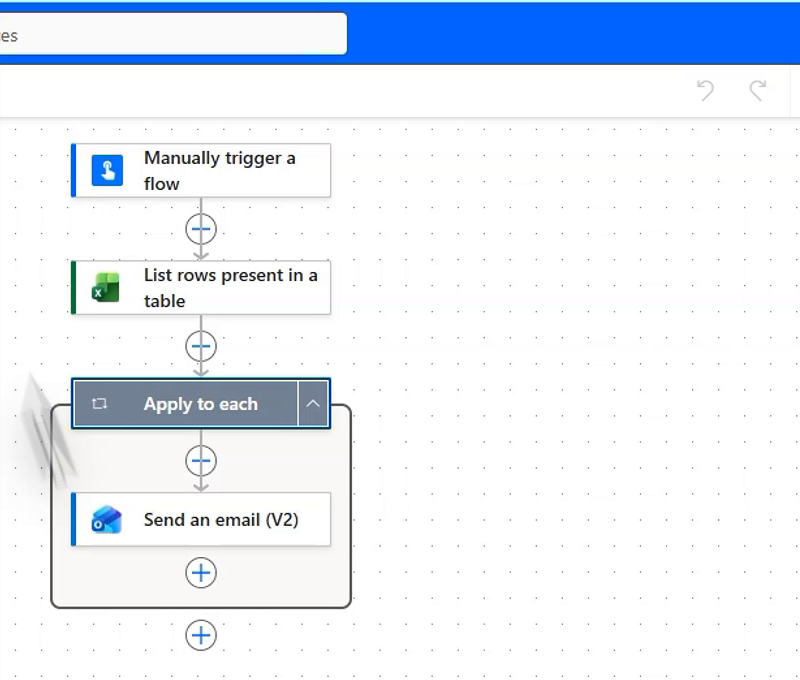
Every step opens, and every setting is readable and editable. It is an ordinary flow that happens to have been built by Claude, and you could change it by hand from here.
Then I checked Outlook. The reminder was there, addressed by first name, with the store and the month in the subject.
The last check is the one I would never skip. I opened the tracker and confirmed that the store named in the email was the only row marked No. Claude told me it sent one email. The inbox and the source file agreed.
Free in the AI Library
Get the prompts from this build
The Claude + Power Automate prompt guide has every prompt in this post with the blanks marked, plus a setup check to run first. It comes with my free weekly newsletter, Finance AI Insider.
Adding an approval step by asking
A flow that emails managers with nobody looking at the list first is a flow I would switch off within a month. So the first change was a gate.
Change my "Commentary Reminder" flow. Change nothing else.

Before any reminder goes out, send me one Outlook email that lists every manager who hasn't filed, with two buttons: Send reminders and Hold. Use the Outlook "send email with options" action. Don't use Teams and don't use the Approvals app.

If I choose Send reminders, carry on as before. If I choose Hold, send nothing and end the flow.

Tell me what will change in plain words and wait for my OK. Then make the change and run it once.
I named the action on purpose. Power Automate has several ways to ask a person for a decision, and “send email with options” is the one that needs nothing but Outlook. I don’t have Teams on this tenant, so this was the only route that fit.
Claude’s plan said the trigger and the Excel step would stay as they were. It would build the list, email it to me with the two buttons, and fork on my answer. It also raised a case I had not thought about: if nobody is unfiled, skip the email to me and end quietly. I said yes.
This change took about three minutes.
The designer now showed two decision points, one for “is anyone unfiled” and one for my answer. In Outlook there was a new email listing the unfiled manager, with a Send reminders button and a Hold button.
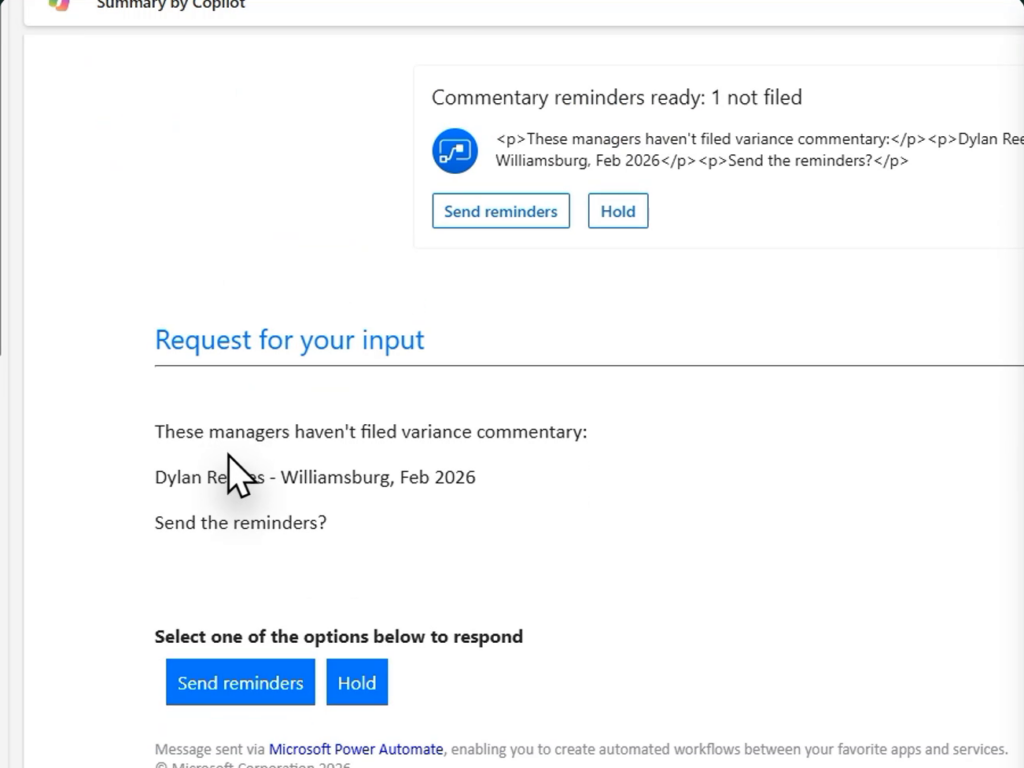
I clicked Hold. A page confirmed the response was registered, and no reminder went out. The run history showed the flow sitting at the options step for about two minutes, which was me, and then finishing without sending anything.

Putting it on a schedule
A button is fine for a test. For a close process I want it to run by itself and tell me what it did.
Change my "Commentary Reminder" flow. Change nothing else.

1. Instead of a button, run it automatically on the 3rd of every month at 8:00am Eastern.
2. After the reminders go out, send me one summary email: how many reminders were sent and to which stores. If I chose Hold, send me a one-line note saying nothing was sent.

Tell me what will change in plain words and wait for my OK. Then make the change. Don't run it.
Claude showed the plan, I approved it, and about two minutes later the trigger at the top of the flow had changed from a manual button to a recurrence: every month, Eastern Time, starting at 8:00am on the 3rd. Everything below it was the same flow.

The summary email is the piece I care about as a finance leader. It is the evidence that the control ran.
Having Claude read the run history
Run history is where most people get stuck in Power Automate. So I asked instead.
Look at the run history for my "Commentary Reminder" flow. Tell me in plain words, one line per run: when it ran, whether it succeeded, which button I picked, and how many reminders went out. If any step failed on any run, tell me which step and why. Change nothing.Claude came back with a small table: three runs, all succeeded, with the time of each, which button applied, and how many reminders went out. It also pointed out something I would have misread. On the Hold run, the reminder step showed as “skipped”, and Claude noted that skipped means the Hold path worked as designed.

It went further and told me what had not been proven yet: the scheduled trigger had never fired, and the Send reminders path had not been run since the buttons were added. That is the sort of thing a good reviewer tells you, and it is what I want from AI agents for finance work in general: a report on what was done and what was left unproven.
I checked one run against the real history page. Same time, same result.
Where it was slow or fiddly
This worked, and it still has edges.
The first build is slow. Fifteen minutes for a four-step flow is longer than an experienced builder would take. The value is that someone who cannot build flows now can.
You still need to read the plan. Claude asked good questions, but it builds what you approve. If the plan says it will email every row and you say OK, it will. Microsoft’s own researchers describe the same shift in What is it like to program with artificial intelligence?, a paper on the open challenges for non-programmers using these tools.
The file has to be in place first. Claude reads the tracker from OneDrive. Getting the file there is your job.
The approval email waits for you. A flow using “send email with options” pauses until someone clicks. Microsoft’s flow limits put a 30-day cap on any run, pending steps included, so a missed click means a missed month.
It uses your sign-in. The flow runs on your connections, as you. That is fine for a personal reminder and worth a conversation with IT before it becomes a team process.
Test addresses matter. For the demo, every address in my tracker was my own. Do the same on your first run, so a mistake emails you and nobody else.
Common issues
Claude says it can’t find the file
Give it the exact file name and say where it is (“at the top level of my OneDrive” or the folder name). Check the data is a named table.
It asks to sign in or approve something
That is the prompt working. Approve the Microsoft sign-in with your work account. If you have more than one Microsoft account in Chrome, check which one it picked.
The email has buttons missing
Some Outlook views show the options as links. They work the same way.
The flow built, but it sent to every row
The filter was dropped. Tell Claude: only rows where Filed is “No”, and ask it to show the changed step.
Cost and access
Power Automate flows built on standard connectors, which is all this flow uses, are included with most Microsoft 365 business plans. The Code tab in the Claude desktop app needs a paid Claude plan. Check both against your own licences, since plans and limits change during the year (as of October 2026).
What I would do with this next
Start with one chase. Pick the reminder you send most often, put the list in an Excel table, and use the first prompt with your own columns. Keep every address as your own until you have read one run end to end.
Then add the gate, then the schedule. By the third prompt you have a small control that runs monthly and reports on itself, and you built it by describing it. The same approach works on Power Automate’s sibling, where I built a Power BI dashboard with Claude Code.
The prompts from this post are in the F9 Finance AI Library as a prompt guide, along with a one-time setup prompt and a Claude skill that drives the same build.